 SocialAgent
From a website URL to a published post
Set up your brand, connect your accounts and create your first draft. Here is how to review your content and schedule it for publishing.
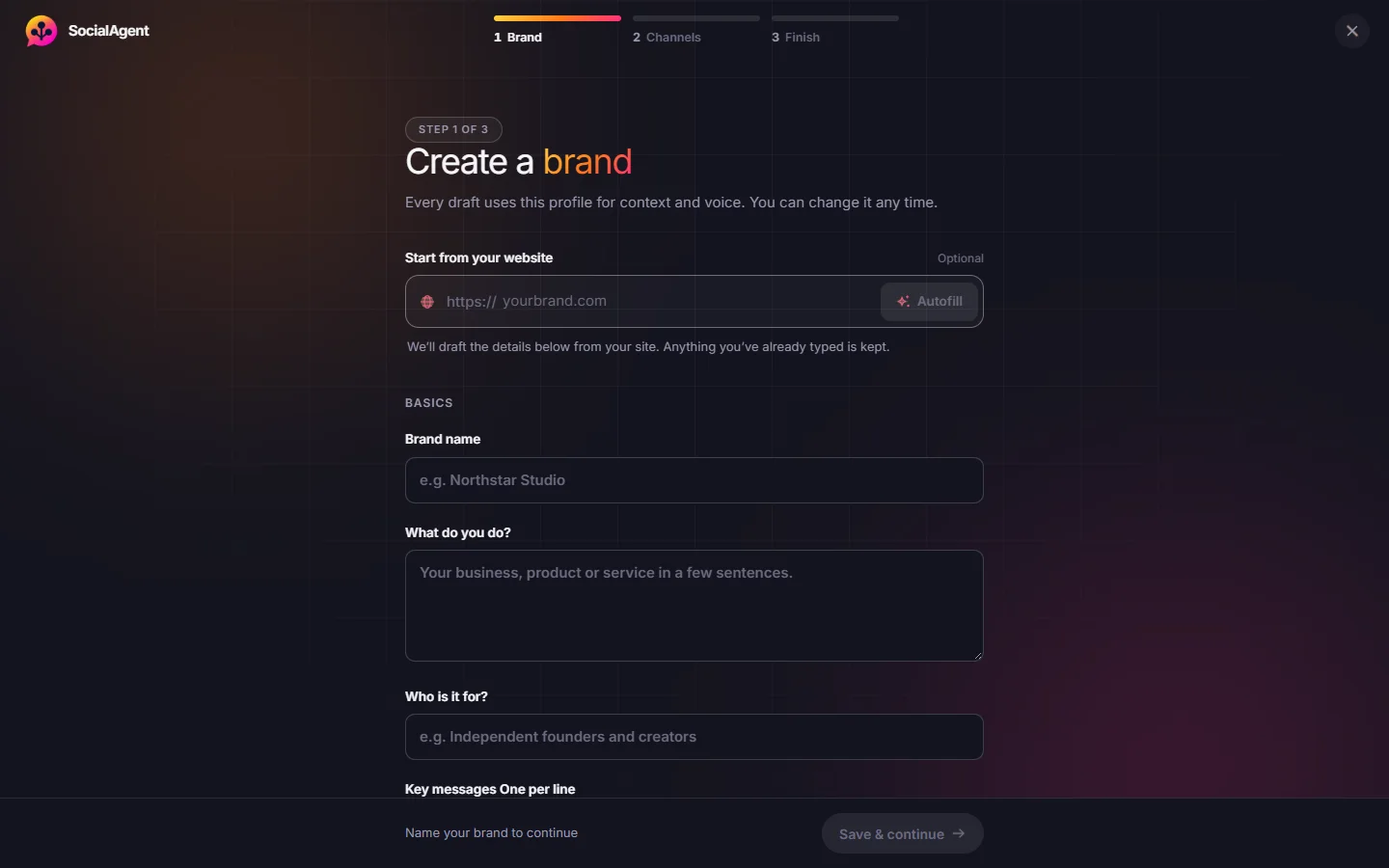
Create a brand from your website
Add your website and SocialAgent suggests a brand description, audience, language and tone of voice. Review the suggestions and save your colors, fonts and logo in a Brand Kit.
Start with your brand profile, then connect publishing channels and your AI provider. The website step is optional — you can type everything in by hand.
Be specific about your style. Add topics to cover, words to avoid and examples of how your brand speaks.
Connect your social accounts and AI
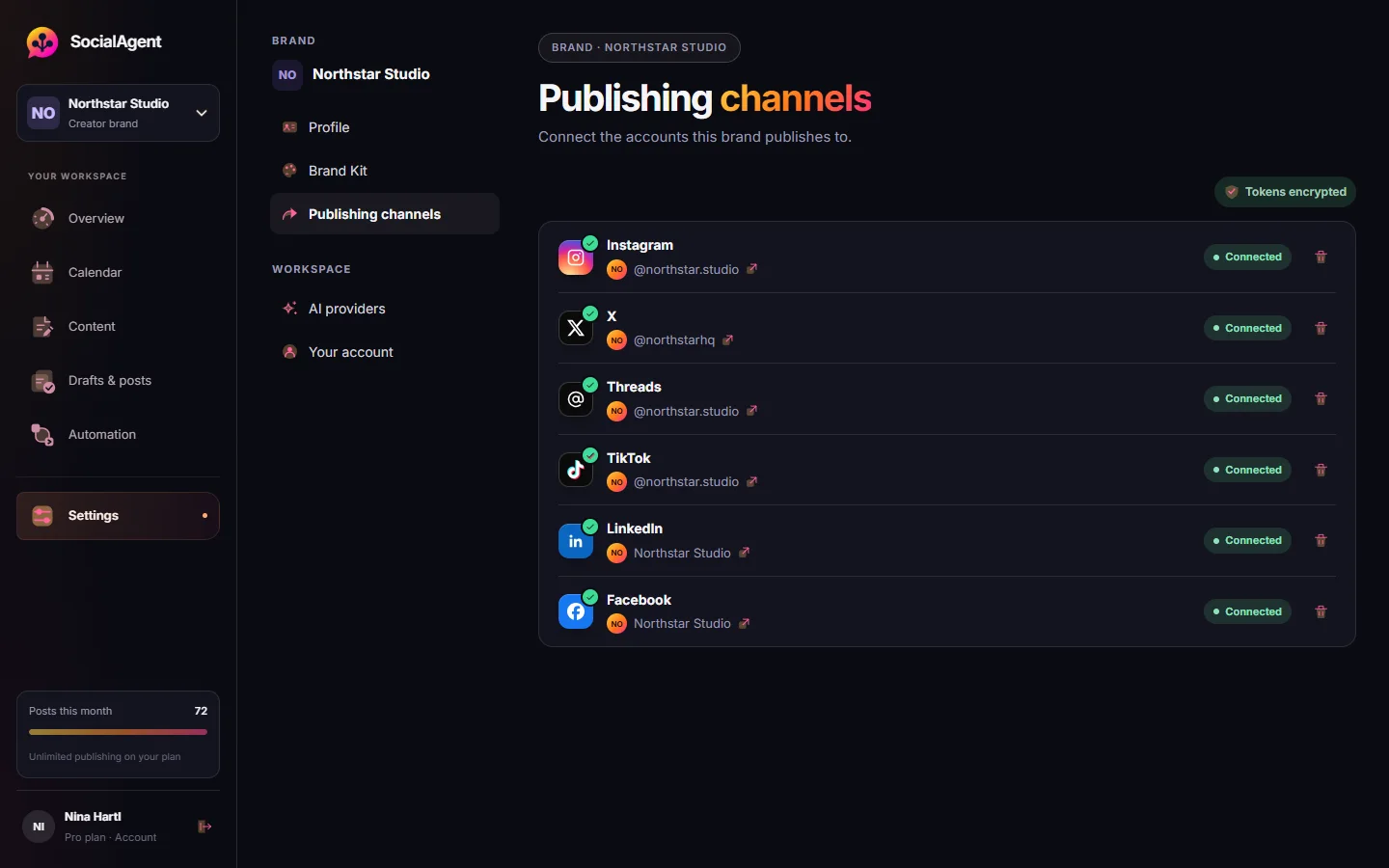
Connect the accounts you want to post to: Instagram, Threads, X, TikTok, LinkedIn Company Pages or Facebook Pages. Then add an API key from your own OpenAI, Anthropic, Gemini, Grok or Mistral account to generate content.
An API key connects your AI account to SocialAgent. Your provider bills AI usage separately from your SocialAgent plan.
Instagram publishing requires a Business or Creator account. LinkedIn and Facebook connections publish to Pages. Each brand connects one account per platform.
Create a post or set a recurring schedule
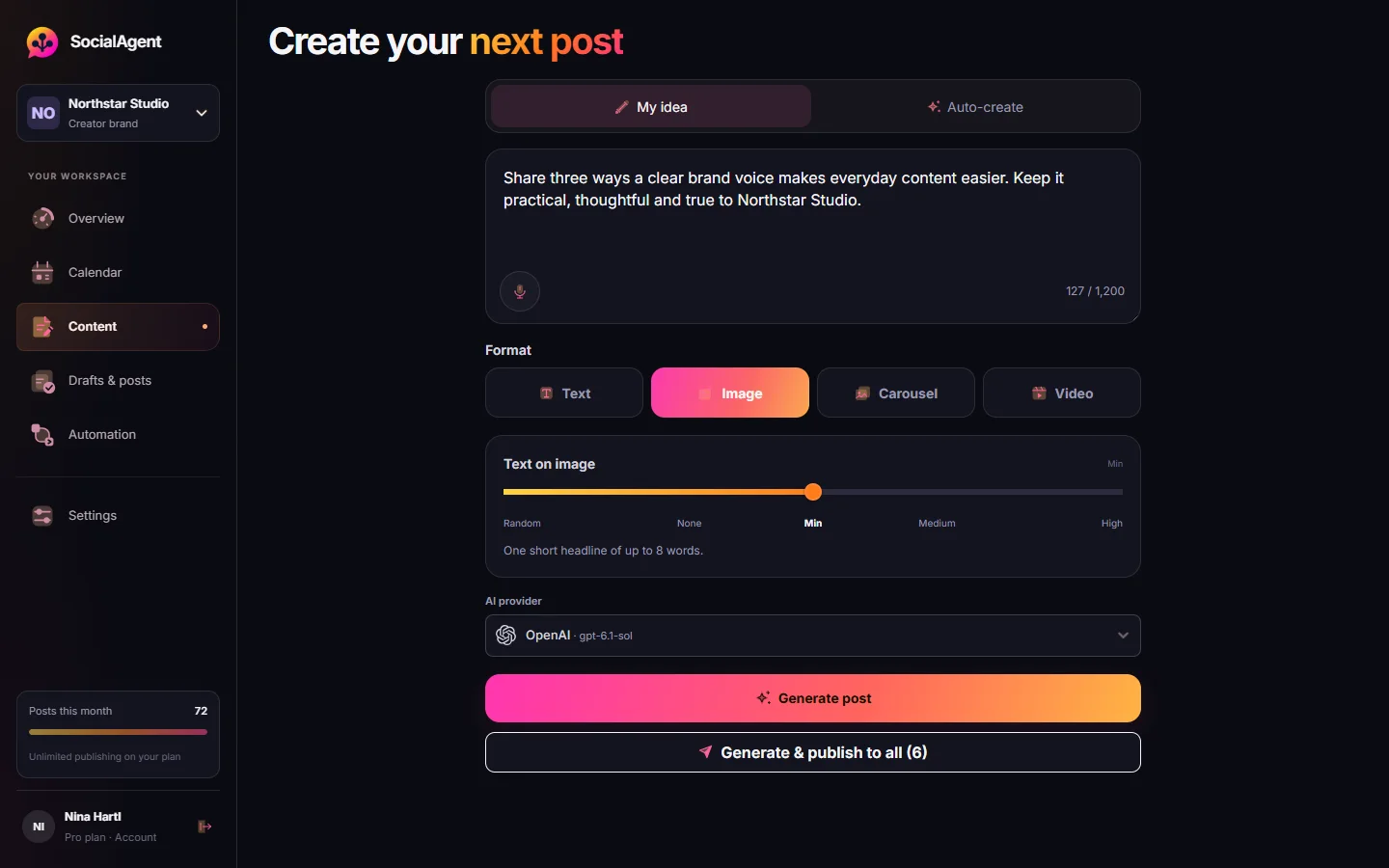
Describe an idea and choose a text post, image, carousel or short video. SocialAgent creates a draft with a caption for each platform. Video creation is included with Pro.
For regular content, choose your posting days, times, format and accounts. SocialAgent can prepare drafts one to fourteen days ahead.
Posts wait for your review by default. You can turn on automatic publishing for individual schedules. Posting times use your brand’s timezone.
Review every version, then approve
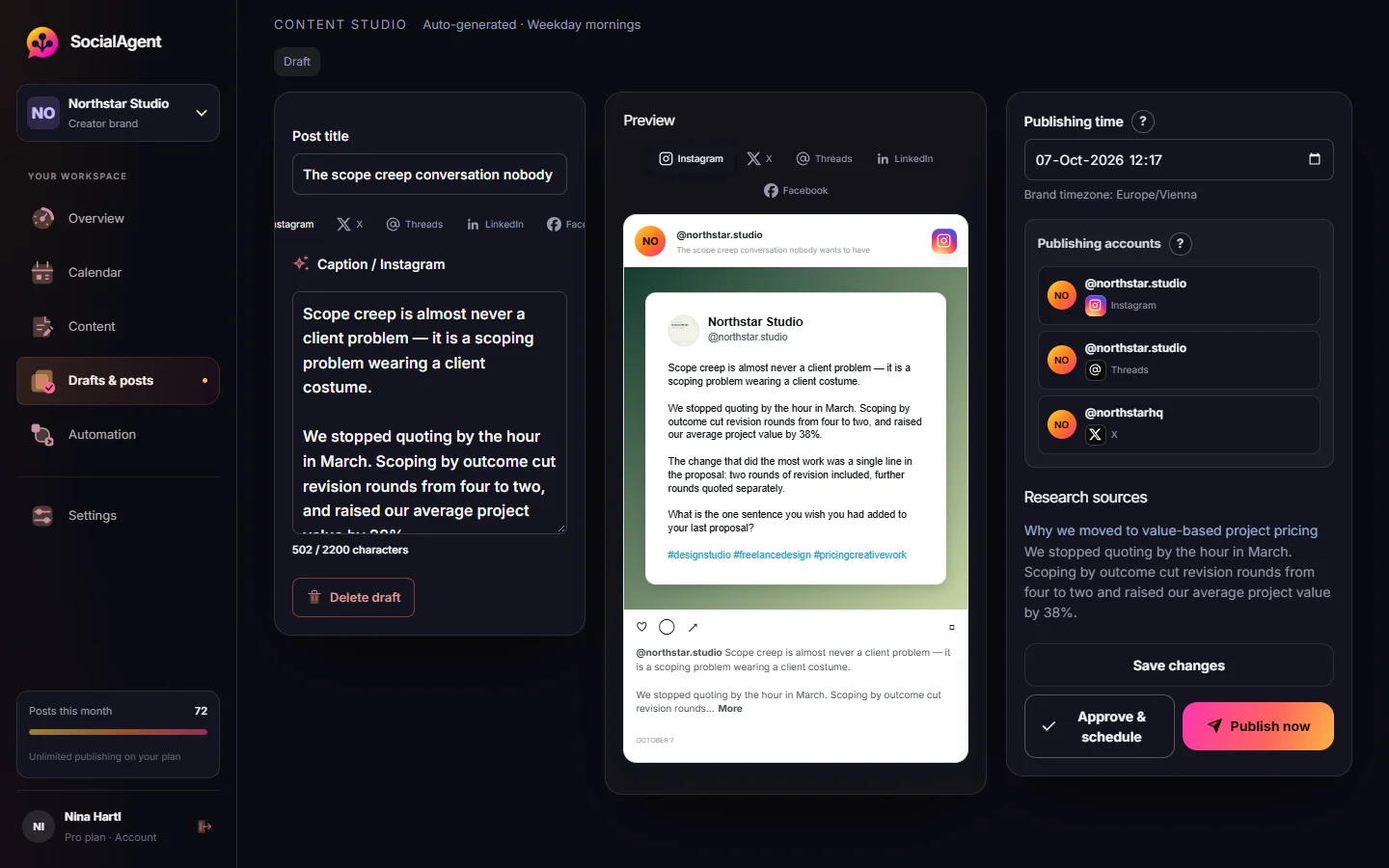
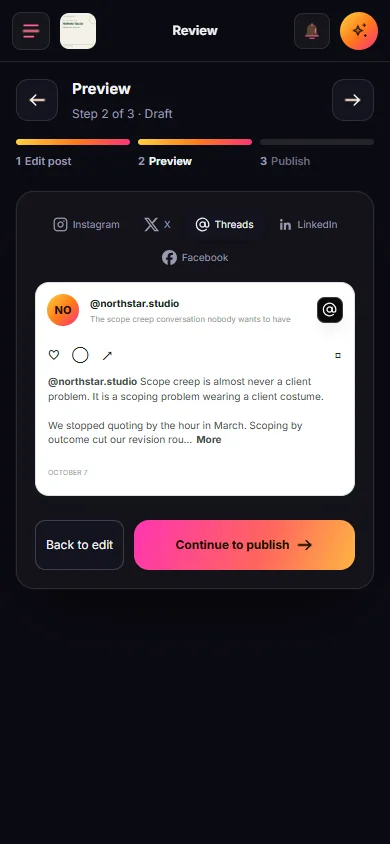
Preview the post, edit each platform’s caption and check where and when it will publish. For research-based drafts, read the source excerpts alongside the copy. Then approve it for publishing.
If you edit an approved post, the changed version needs your approval again. Moving it to a different time does not require another approval.
For carousels, check the artwork on every slide. All required images must be ready before the post can publish.
Publish and check the results
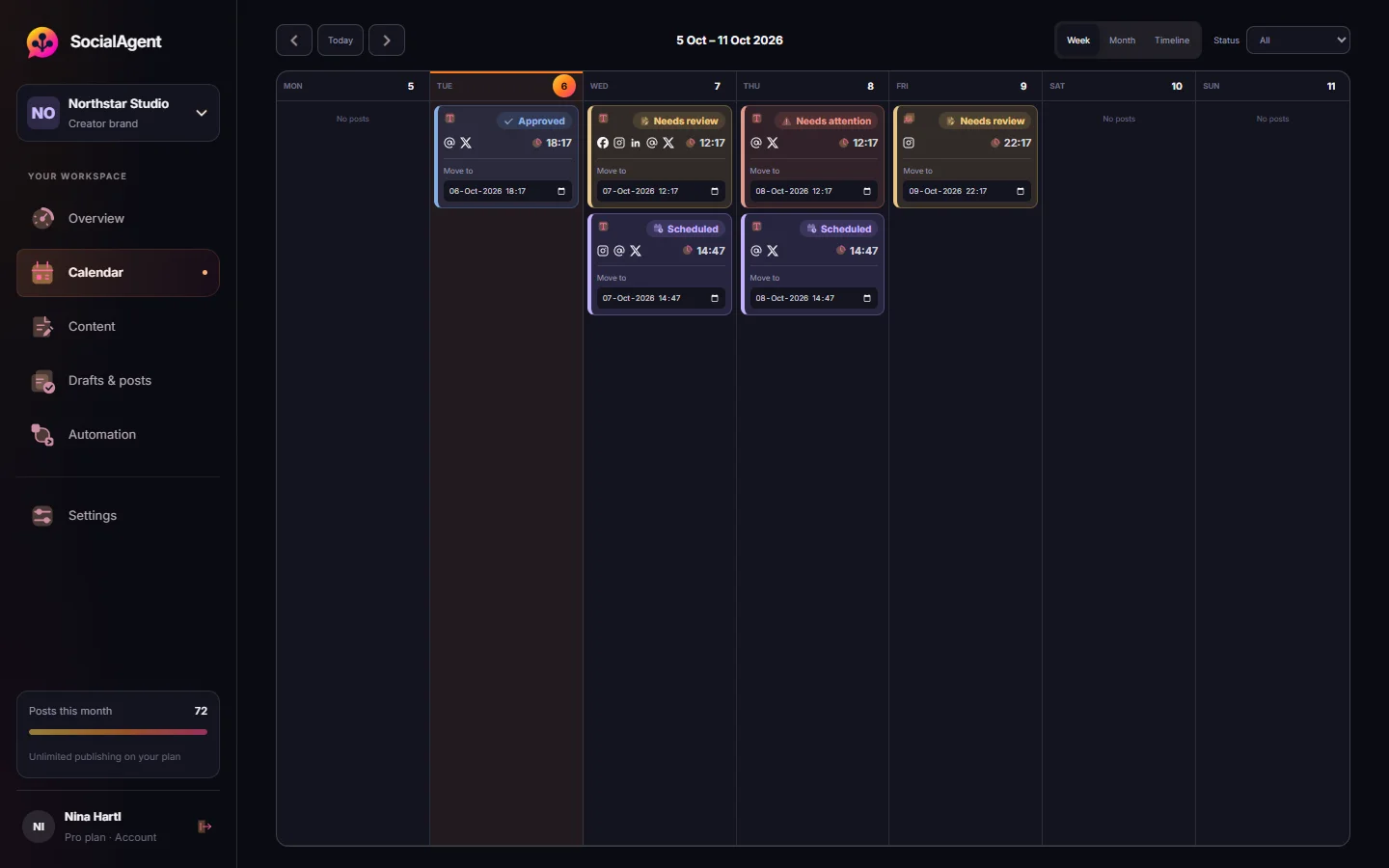
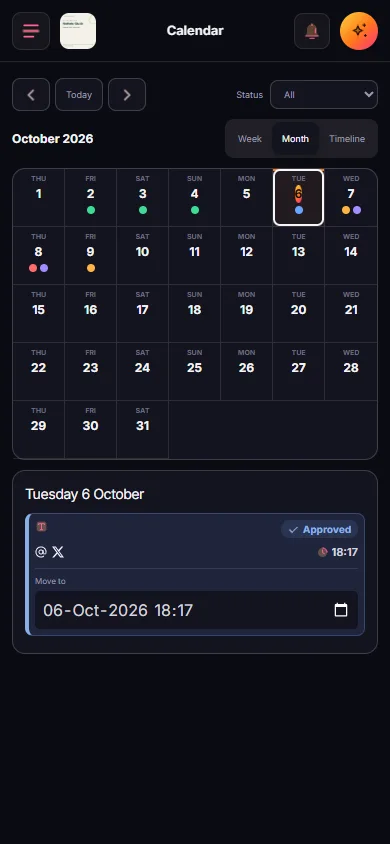
SocialAgent publishes approved posts at the scheduled time. See the result for each account in your workspace, with a notice if something needs your attention.
Older research sources are checked again before publishing. If a cited excerpt changed or cannot be checked, the post waits for review. This check detects changes; it does not verify that a claim is true.
Temporary publishing errors are retried automatically. If it is unclear whether a post went live, SocialAgent pauses that account’s attempt for a check to help avoid posting twice.
What SocialAgent handles for you
AI helps with drafting and scheduling. You set the direction and choose how much to automate.
| Step | What SocialAgent does | What you do |
|---|---|---|
| Set up | Suggests brand details from your website | Check the details and connect your accounts |
| Prepare content | Creates drafts ahead of your posting days | Choose a recurring schedule |
| Find ideas | Uses your websites and RSS feeds for research | Choose the sources you want to use |
| Review | Shows captions, previews and source excerpts | Edit and approve, unless auto-publishing is enabled |
| Publish | Publishes scheduled posts and shows the results | Check progress in your calendar |
| Resolve a problem | Pauses the affected post and explains why | Review the notice and take the suggested action |
About the workflow
How long does setup take?
About ten minutes: create the brand (faster if you use website autofill), authorize the platforms you publish to, and paste an AI provider key. The first drafts can be generated immediately after.
Do I have to approve every single post?
By default, yes — approval is the default and nothing publishes unread. You can opt an individual schedule into automatic publishing once you trust its output, which leaves your other schedules unchanged.
What happens if I edit a post after approving it?
The edited version returns to your review queue and needs your approval again before publishing.
What if I do not review anything for a week?
Posts that need approval stay in your review queue, even if their scheduled time passes. Previously approved posts and schedules with automatic publishing enabled can still publish.
Can SocialAgent post without me at all?
Only if you opt a schedule into automatic publishing. Even then the pre-publish checks still run: changed cited evidence, missing carousel slides, revoked connections and exhausted allowances all hold the post.
Set up your first brand
Choose the Free plan for one brand and 15 posts a month. Your own AI API key is required, and provider usage is billed separately.