 SocialAgent
How to schedule social media posts from one calendar
Scheduling means writing when you have time and publishing when your audience is online. Here is how to do it across six platforms without juggling six apps.
Free plan · Bring your own AI key · Approval before anything publishes
The short answer
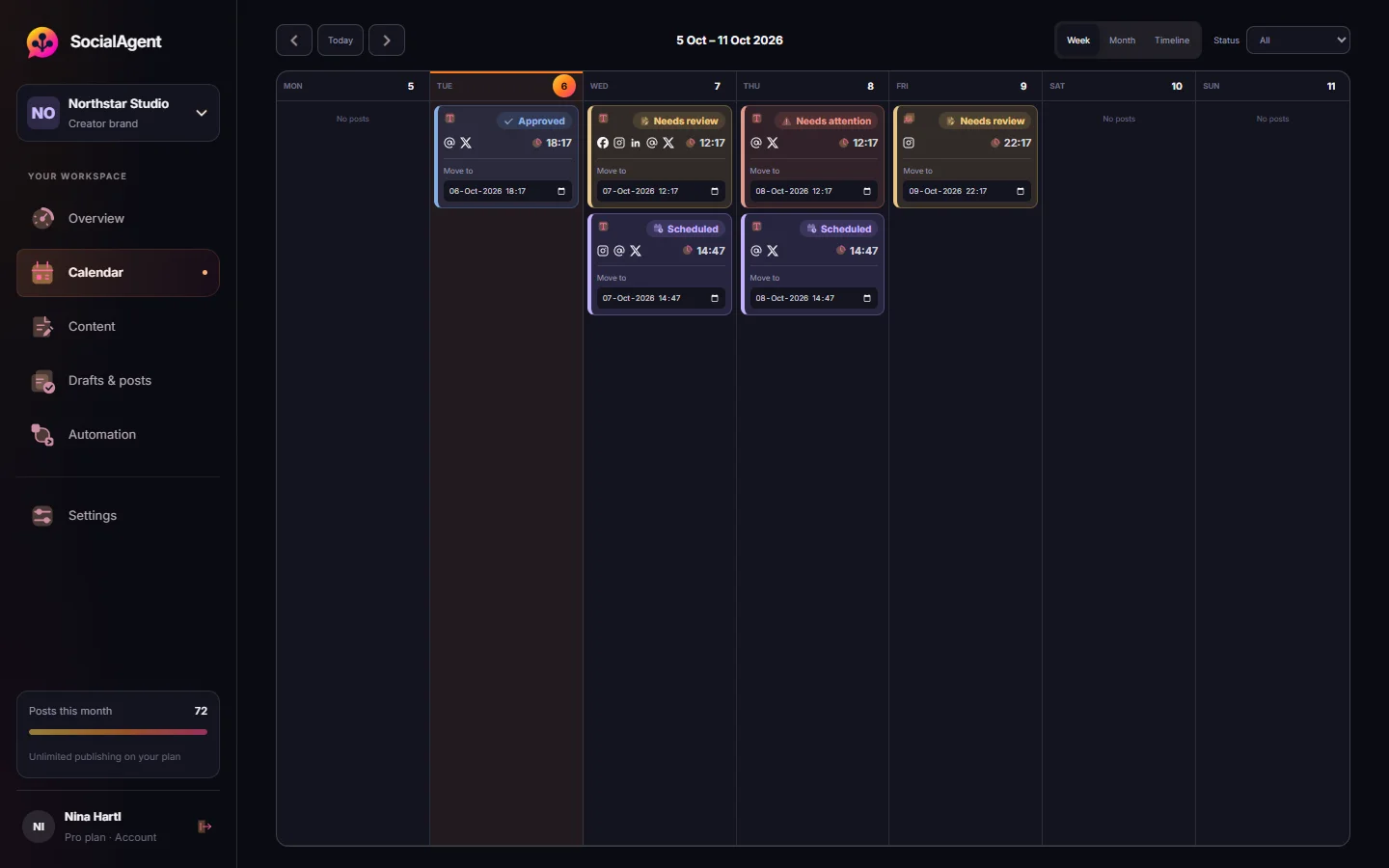
To schedule social media posts, connect your accounts to a scheduler, write or generate the post, choose the accounts it goes to, set a date and time in your timezone, and approve it. The scheduler publishes it through each platform’s official API at that time.
Schedule a post in four steps
-
Connect accounts
Sign in to each platform through the scheduler. Use a Business or Creator account for Instagram, and a Page for LinkedIn and Facebook.
-
Create the post
Write it, or let AI draft it from your brand profile. Adjust the caption for each channel instead of pasting one everywhere.
-
Pick the time
Choose a date and time in your brand’s timezone. If your audience is elsewhere, schedule for their time, not yours.
-
Approve it
Check the preview and approve. The post publishes on schedule and you see the result for each account.
What each platform needs
| Platform | Account needed | What you can schedule in SocialAgent |
|---|---|---|
| Business or Creator account | Images, carousels, Reels (Pro) | |
| TikTok | TikTok account | Videos (Pro), photo posts |
| Company Page you administer | Text, images, multi-image, video | |
| Page you manage | Text, images, up to 10 photos, video | |
| Threads | Threads account | Text, images, carousels |
| X | X account | Text, up to 4 images |
When should you schedule posts?
Generic “best time to post” charts are averages across millions of accounts. Your own audience matters more. Start with mid-morning or early evening in your audience’s timezone on weekdays, then compare results after a month.
Consistency beats precision. Posting reliably on the same days teaches your audience when to expect you, and gives you comparable data.
Scheduling one post or a recurring schedule?
You can schedule individual posts, or set a recurring schedule — for example Monday, Wednesday and Friday at 9:00 — and have drafts prepared for each slot. Recurring schedules are what turn scheduling into automation: the calendar fills itself, and your job becomes reviewing.
Common questions
Can I schedule posts to multiple platforms at once?
Yes. Choose several destinations for one draft. Each platform keeps its own caption and preview, and reports its own publishing result.
Can I schedule Instagram posts from a personal account?
No. Instagram allows scheduled publishing from Business and Creator accounts only. Converting is free and takes about a minute.
What timezone are scheduled posts in?
In SocialAgent, each brand has its own timezone, and the calendar shows publishing times in it.
What happens if a scheduled post fails?
SocialAgent records the result for each account and notifies you when a post needs attention. If the outcome is unclear, it holds the post for you to check rather than risk a duplicate.
Can I change a scheduled post?
Yes. Changing only the time does not need another approval; editing the content sends it back to review.
Related guides and tools
Best Time to Post Planner
A starting posting schedule in your own timezone, built from your audience type and how often you can post.
Read more →How to post to all social media at once
Publish one idea to Instagram, TikTok, LinkedIn, Facebook, Threads and X at once — with a caption adapted for each platform instead of one copy pasted everywhere.
Read more →Instagram Scheduler
Schedule Instagram posts and carousels. Generate captions with your own AI keys, generate slide artwork, review posts, publish from a Professional account.
Read more →TikTok Scheduler
Schedule TikTok videos and photo posts. Create 15–30 second AI videos with your own AI key, review every post and publish through the official TikTok API.
Read more →LinkedIn Scheduler for Company Pages
Schedule LinkedIn Company Page posts. Draft with your own AI key, keep a real LinkedIn version, add images or video, review it and publish on time.
Read more →Facebook Post Scheduler for Pages
Schedule Facebook Page posts with AI captions, photos and video. Review every draft and publish on a calendar in your brand’s timezone.
Read more →Create your next post with AI
Free plan with 15 published posts a month. Bring your own AI key and review every post before SocialAgent publishes it.